Control the Text Flow
The converter supports applying both Left-to-Right (LTR) and Right-to-Left (RTL) layouts via two attributes: dir and lang.
Key Distinction:
dirAttribute: Controls the layout direction (LTR or RTL). This dictates how characters flow and justifies margins.langAttribute: Specifies the language, which helps determine the natural reading order and culture.
If lang is set to a language known to be RTL (e.g., Arabic), the converter will often infer rtl and apply it, but using dir="rtl" is always the most reliable method.
Recommendation: For definitive layout control, always use the dir attribute. The converter uses the specified dir value to apply the correct layout direction within the generated DOCX package.
Document Body Direction
To inform the converter of the intended flow for the entire document, apply the dir attribute to the body tag. This sets the initial parsing context from which all subsequent content is generated.
<!-- Sets the entire document body to flow Right-to-Left -->
<body dir="rtl">
   <h1>Document Title</h1>
</body>

<!-- OR use the lang attribute if the language dictates the direction -->
<body lang="ar">
Note on Existing Templates: If you are appending content to an existing Word document or DOCX template, the converter respects and maintains the original document's innate layout direction unless explicitly overridden.
Paragraph/Text Direction
For applying RTL specifically to a block of text, apply the dir attribute to the container element:
<p dir="rtl" style="font-family: 'Arabic Font';">
    تجربه إضافة نص... (RTL Text)
</p>
Table/List Elements
For collections of items, apply the dir attribute to the container tag:
Lists:
<ol dir="rtl">
   <li>Item 1</li>
   <li>Item 2</li>
</ol>
Tables:
<table dir="rtl">
    <!-- Table content here -->
</table>
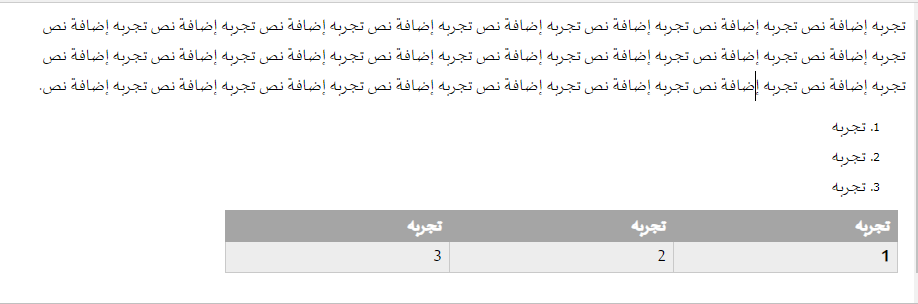
Example of RTL-generated output
You can see the converted HTML with some Arabic (RTL) layout: